Create and Share Documents with Our PDF QR Code Generator
To provide easy, instant access to a PDF document, a QR code is the no.1 tool at your disposal.
By placing your code on flyers and other marketing materials, you can share important information related to events, products, guides, and more. Here is a detailed guide for creating a QR code for a PDF.

What Is a QR Code Generator for PDF?
A PDF QR code generator is a tool that lets you create a QR code that shares a PDF file.
You can take advantage of our easy-to-use generator right here on OnlineQRCode.com to create a QR code for a PDF.
With our generator, you upload your PDF to generate a QR code that sends anyone who scans it instantly to your file for download. Our generator also lets you easily customize your code with the colors of your choice and even has an AI tool.
It’s a super slick way to share documents without fussing with email attachments or links.
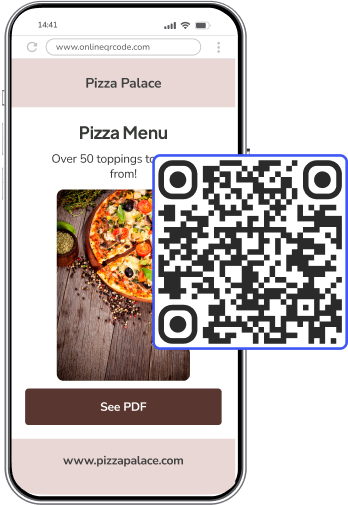
What Information Can I Store in a PDF QR Code?
You can store just about any PDF document in a QR code. This could include any sort of information, such as:
- Menus
- Infographics
- Training manuals
- Contracts
- Event details
Using this type of code, you can easily share important information with your students, customers, friends, or colleagues.
Why Do I Need a PDF QR Code?
Using a QR code for PDF file sharing can be hugely beneficial, whether you need it for personal or professional reasons.
Here are some reasons why you should add your PDF to a QR code.
How Do I Create a QR Code for my PDF?
It’s super easy to make a QR code for a PDF with Onlineqrcode.com’s generator tool. Here’s how to do it step-by-step:
-
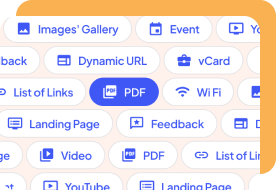
1. Select "PDF QR Code" in the Generator
Open our QR code generator with "PDF QR Code" selected
-
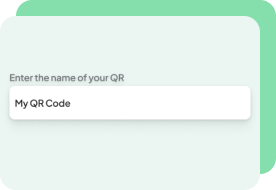
2. Give your code a title
Choose a name for your QR code project
-
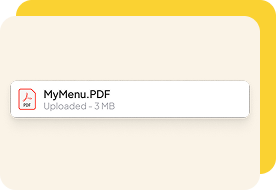
3. Upload
Upload Your PDF into the generator
-
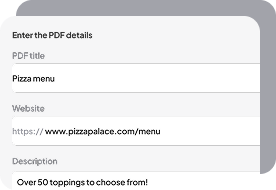
4. Enter the required details
Enter the required details
-
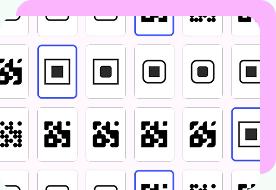
5. Personalize your code
Customize the design of your PDF QR Code to match your brand
You can take advantage of our tool’s AI generator to create a personalized logo that will capture attention and stay easy to scan.
Make sure your PDF is the final version because once you convert your PDF to a QR code, you'll need to generate a new code if you make changes to the document.
Before you start distributing your QR code, make sure to test it with a few different devices and QR scanner apps to ensure it works properly. You want to ensure that when it’s scanned, the PDF opens correctly on smartphones and tablets.
Examples of Using QR Codes for PDFs
PDFs can be very useful for increasing productivity or helping people understand information quickly if placed in the right areas with relevant information. Take a look at some examples of how you can use them.
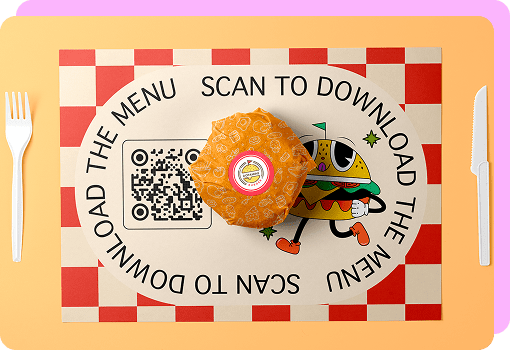
Restaurants
If you work at or own a restaurant, you can use PDF QR codes in several ways, such as:
- Placing them on tables or posters to direct customers to PDFs of their menus.
- Adding codes to advertisements in newspapers or magazines that link to PDFs with information about the restaurant.
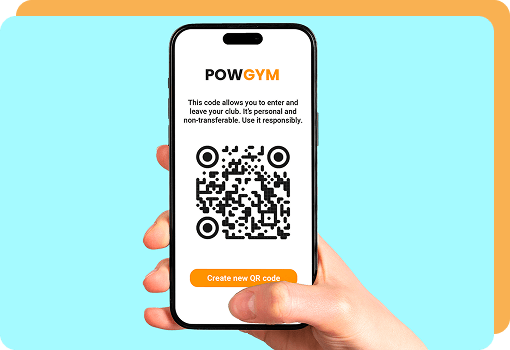
Gyms
Gyms often use QR codes on posters and brochures around the facility to lead members to PDFs with things like:
- Timetables for fitness classes
- Special events
- Availability of facilities like swimming pools, squash courts, etc.
Retail
Business selling electronic items, furniture, or other goods might place a QR code for PDFs on product packaging or on leaflets inside the box. This can give your customers access to essential PDFs like:
- Product manuals
- Instructions for assembly
- Catalogs of other products
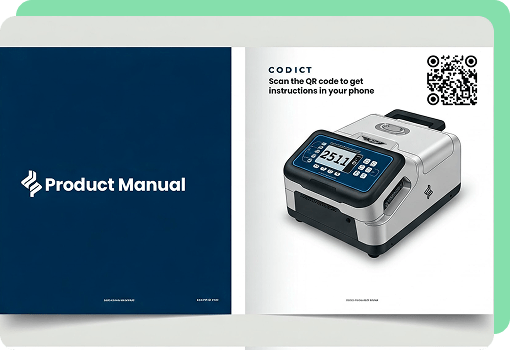
Create a PDF to QR code and make your content more accessible.
PDF to QR Code – FAQs
Still have some questions about using QR codes for PDF files? If so, check out some helpful answers to typical questions below.
-
Scanning a PDF QR code is straightforward. All you need is your smartphone or tablet, and to follow these steps:
- Open your camera app as if you were going to take a picture.
- Point it at the QR code. Your device should recognize the QR code and show a notification or a link on your screen.
- Simply tap the link! Once your camera detects the QR code, it usually pops up a little notification or link right on your screen. Tap on it, and it will take you directly to the PDF linked to the QR code.
-
Once a user scans the PDF QR code and taps the link, the PDF should open right in their web browser.
From there, they can read it, download it, or share it, depending on what they need.
It’s as simple as clicking on a link online; the QR code just skips the step of having to type or search for the URL.
-
Absolutely! You can convert just about any document into a QR code, including a Word document.
It’s advisable to convert your Word document to a PDF first — PDFs are more universally accessible and tend to preserve your formatting across all devices.
However, you can create a QR code that leads directly to a Word document if you wish. Follow the same steps as with any QR code — generate, customize if you want, then test it out to make sure it works.
-
Your PDF QR codes won’t expire as long as the linked PDF is not deleted. If you delete your PDF file from the code or eliminate it, then it will not appear when scanned.
-
You can track your scans by using dynamic PDF QR codes. These allow you to monitor data like when, where, and how often users scan your QR code, all through our QR code generator’s analytics dashboard.
-
Yes! If you use dynamic QR codes, you can update the PDF linked to your QR code anytime without changing the code itself with our generator. Static QR codes, on the other hand, don’t offer you this flexibility.
-
With our QR code generator, you can personalize your code's appearance by changing its colors and its frame to match your brand and style. You can also use our tool’s AI generator to create a logo or image to customize your design even more.
-
To create a PDF QR code by uploading it to Google Drive, upload your PDF to your Drive and adjust the sharing settings to “Anyone with the link.”
After doing this step, copy the generated shareable link and paste it into our PDF QR code generator.
Once your QR code is created, you can customize its design with our generator’s design functions, including our AI logo generator and download it.
After it’s been scanned, the QR code will open the PDF directly from your Google Drive.
-
To generate your PDF QR code, start by uploading your PDF to Dropbox and creating a shareable link by selecting “Copy link” from the sharing options.
Make sure the link is public so anyone with it can access the file, then paste this link into OnlineQRcode’s QR code generator and select PDF.
After this step, you can then generate and customize your QR code with your brand’s colors and logo.
After downloading the QR code, you can share it online or print it, letting users access your Dropbox-hosted PDF after scanning.